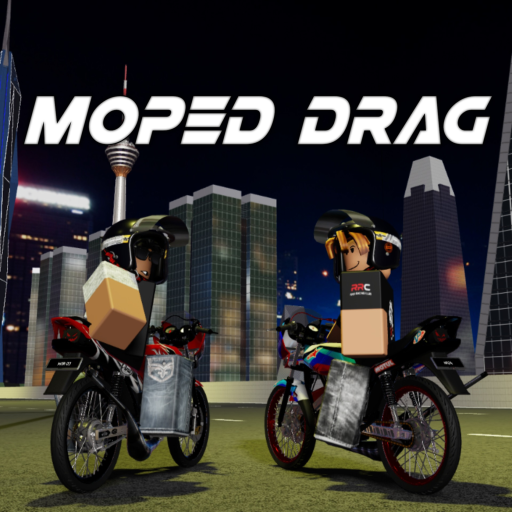
Moped Drag Best Settings: PC, Mobile & Camera Guide Tips
Use this moped drag best settings guide to map verified camera and control options to PC or mobile while avoiding invented performance presets.
Evidence note: The accepted archive does not support a complete current answer for this topic. This page keeps those gaps visible and uses a live verification workflow instead.
Evidence note: this Moped Drag best settings guide can verify available control modes, not a universal performance preset. Official evidence lists first person, first-person free look, free cam, vehicle inputs, and mobile on-screen buttons. It does not publish graphics levels, sensitivity values, frame-rate targets, or device profiles. The best setup is therefore a short live test that protects readability and consistent input on your own device.
Check the official Roblox experience before relying on update-sensitive details.
The following player-made video is useful visual context; it is not an official specification and does not override the verified facts above.
Start with the verified control options
On PC, confirm the published keys before changing anything else: E and Q for gears, V for first person, B for free look in that mode, T for wheelie, Left Shift for parking brake, and Shift+C for free cam. On mobile, confirm the current on-screen actions. A correct control map solves more problems than an invented graphics preset.
Choose a camera view for the task
Use a normal riding view to learn inputs, first person when that view helps you read the ride, B free look when you need to look around, and free cam for observation rather than vehicle testing. There is no verified best view. Pick the one that keeps the route and inputs understandable, and return to a stable state before comparing performance.
| Area | Verified option | Player decision |
|---|---|---|
| Gears | E and Q on PC | Choose comfortable hand placement |
| First person | V on PC | Use when visibility improves |
| Free look | B in first person | Use deliberately |
| Free cam | Shift+C | Keep separate from riding tests |
| Mobile | On-screen buttons | Learn current action positions |
| Performance | No preset published | Test only live options |
Tune only settings visible in your client
If Roblox or the experience exposes graphics, volume, camera, or device options, change one at a time and note the result. Do not copy a numeric sensitivity or graphics level from an unrelated device. The archive does not support those values. Keep a change only when it improves clarity or input consistency in repeated live use.
Use this quick review list:
- Verify controls before tuning.
- Change one visible setting at a time.
- Judge clarity and consistency on your device.
- Avoid modified clients and executors.
Diagnose lag without false promises
Confirm network stability, device temperature, background apps, and the current Roblox client using normal platform tools. Lower only options that actually exist in your interface. A guide cannot guarantee frame rate, ping, or battery behavior. Avoid modified clients, FPS unlockers from unknown sources, executors, and scripts marketed as performance fixes.
Use a small verification loop whenever the interface changes. For this page, that means choosing a stable control and camera setup from options visible in the client. Begin with the verified action or statement, repeat the check under the same conditions, and note any change in the current interface. Do not convert graphics presets, sensitivity, frame-rate targets, and device-specific values into a fixed recommendation. When two observations disagree, prefer the current official page and live client, preserve the date of the check, and describe the uncertainty plainly. This approach keeps the guide useful through beta changes while protecting players from spending or troubleshooting on an invented premise.
Frequently asked questions
What are the best Moped Drag graphics settings?
No verified universal graphics preset was found. Use settings visible in your current Roblox client and test one change at a time.
Which camera mode is best?
No mode is officially ranked. Choose between normal view, V first person, B free look, and Shift+C free cam for the task at hand.
Are mobile performance settings documented?
No. The official page confirms on-screen actions but does not publish device profiles or performance values.